
Notion Meetings Add-on labels every speaker in a Google Meet transcript
TL;DR
On October 27, 2026 Notion launched the Notion Meetings Add-on, a Chrome extension for Google Meet. It replaces two-bucket speaker labels, You and everyone else, with a name for each participant in group and 1:1 calls. Only the person transcribing needs it installed. When transcription starts, it pins a consent notice in the Meet chat.
- Status
- Live
- Released
- Plans
- Business, Enterprise
- Source
- Notion Help
What changed
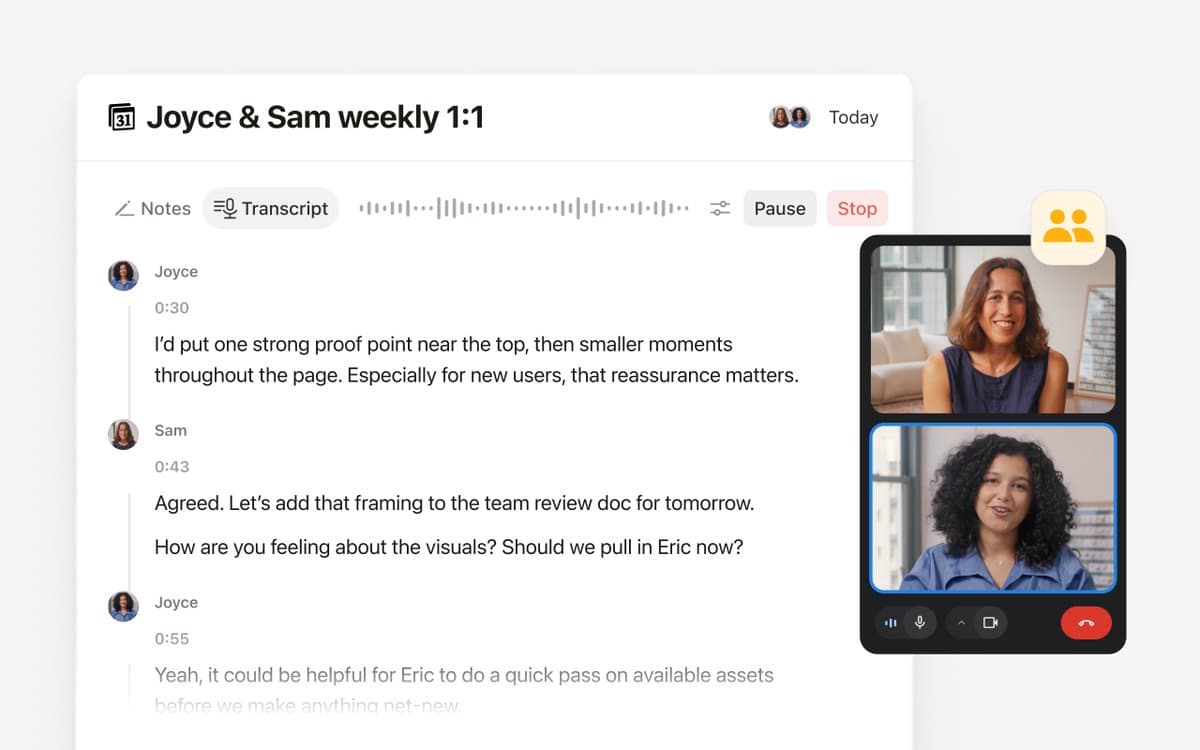
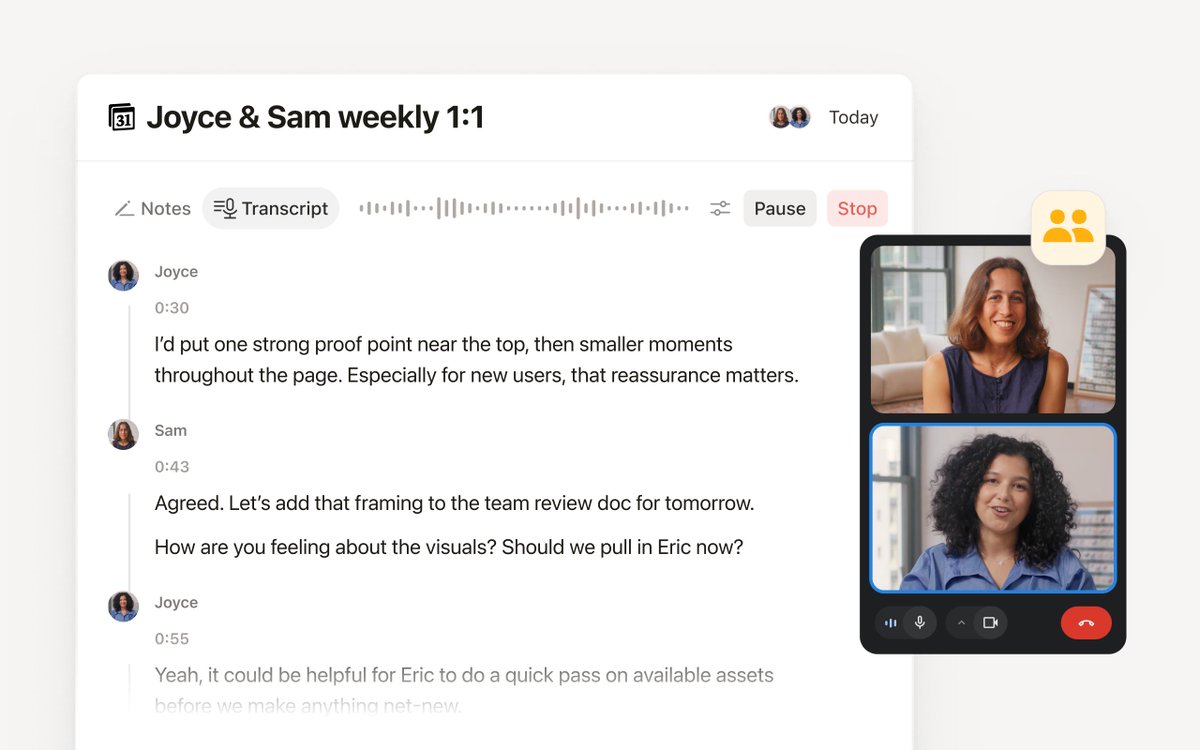
On October 27, 2026 Notion launched the Notion Meetings Add-on, a Chrome extension for AI Meeting Notes in Google Meet. Notion's launch post described the gap it closes: Meet transcripts had two speakers, You and everyone else. With the add-on, every participant gets a label, in a group call and in a 1:1.
The extension runs in Chrome 127 or later on a Mac or Windows computer. It does not run on phones or tablets, and it does not work with Zoom, Teams, or other meeting tools. Start the transcription from the latest Notion desktop app, or from Notion open in Chrome. The add-on icon in the Chrome toolbar should say Connected. That status means the add-on is talking to the Notion desktop app. If it says Not connected, open or update the desktop app, then reload the Meet tab.
Only the person transcribing needs the extension. Nobody else in the call has to install it.
This is the desktop Google Meet path. The home screen widget is a separate update: it starts a microphone recording from an iPhone or Android home screen.
What happens when you start transcribing
When transcription starts, the add-on does three things:
- Names each speaker in the transcript, using who is in the call and who Google Meet says is speaking.
- Posts and pins a message in the Meet chat. Notion's screenshot of that message reads "Notion Meeting Notes transcription is active in this meeting." The pin stays up so people who join late see it. Notion's follow-up post shows the pinned chat.
- Draws a recording indicator over your camera. The indicator is rendered on your own device, and only while your camera is on. The pinned chat message appears either way.
The chat message follows a setting called Automated chat message in video calls. It is on by default. You can turn it off for yourself. A workspace owner can require it for the workspace or the organization, and then members cannot turn it off. An IT admin can install the extension for the whole organization, so transcribed Meet calls include the pin and the camera indicator without each person adding it.
The pin tells the room that notes are being taken. Notion's help center still says you are responsible for getting consent.
A line can still come through without a name. Notion says that happens when people talk over each other, when more than one person matches the same voice or name, or when the audio is coming from outside the call.
Privacy
To label speakers, the extension reads who is in the Google Meet call and who is currently speaking. It does not collect the text of the Meet chat, and it does not send the video anywhere new. The recording indicator is drawn locally, on the machine that is transcribing.
Why it matters
A group transcript that only says You and everyone else is hard to search and hard to hand to someone who was not there. Names on each line make the notes readable, and they make summary citations point at a person.
The pinned chat is the part the rest of the call sees. Late joiners get the same notice, without the transcriber pasting a consent line into Meet by hand. Owners who want that notice on every transcribed Meet call can require the setting, or have IT install the extension org-wide.
AI Meeting Notes, including this add-on, is on Business and Enterprise.
How to turn it on
- Install Notion Meetings Add-on from the Chrome Web Store, in Chrome 127 or later on macOS or Windows.
- Reload any Google Meet tab that was already open.
- Open the add-on from the Chrome toolbar and confirm it says
Connected. If it does not, open the latest Notion desktop app and reload the Meet tab. - Start transcribing with AI Meeting Notes from the desktop app or from Notion in Chrome.
Frequently asked questions
Who needs to install the Notion Meetings Add-on?
Only the person transcribing. Other people in the Google Meet call do not install anything. The extension needs Chrome 127 or later on a Mac or Windows computer. Start transcription from the Notion desktop app or from Notion open in Chrome, and confirm the toolbar icon says Connected. That status means the add-on is talking to the desktop app.
Which plans include individual speaker labels in Google Meet?
AI Meeting Notes is on Business and Enterprise. The add-on is the desktop Chrome path for Google Meet. It does not run on a phone.
What does the add-on post in the Google Meet chat?
When transcription starts, it posts and pins a notice that Notion Meeting Notes transcription is active. The pin stays visible for people who join later. The setting is Automated chat message in video calls, on by default. A workspace owner can require it for the workspace or the organization, and then members cannot turn it off.
Does the extension read Google Meet chat or video?
It reads who is in the call and who is currently speaking, so the transcript can name each person. Notion says it does not collect Meet chat text and does not send the video anywhere new. The camera indicator is drawn on your device.
Why is a transcript line missing a speaker name?
Notion says a line can go unlabeled when people talk at the same time, when more than one person matches the same voice or name, or when the audio comes from outside the call.