Notion Premium AI Credits: The Admin Checklist

Dave de Cespedes
September 11, 2026
4 min read
Updated September 11, 2026
Notion’s premium AI model change is now in effect. Since September 10, premium models for Notion Agent require Notion credits and remain off until an owner or admin enables them. For Business and Enterprise teams, the immediate job is to decide which models belong in the workspace and how much members can spend. Notion’s premium model documentation explains the change.
Set the spending rules before you invite the team to experiment. A more capable model can be useful for a difficult document or a long analysis, but turning it on does not tell anyone when to use it.
Use the admin checklist below during your next workspace review.
Start with one reason to enable a premium model
Pick a task you already understand. A useful pilot might compare two versions of a long internal brief, identify conflicts, and produce a reviewable list of changes. Define what a good answer looks like before running it.
Then compare the premium result with the model your team already uses. Look at factual accuracy, missing context, and the time someone needs to review the answer. A longer answer is not automatically a better one.
This is a recommendation for the rollout, not a Notion requirement: start with a small group that can explain what improved. Expand access when the result justifies it.
Check model access and spending separately
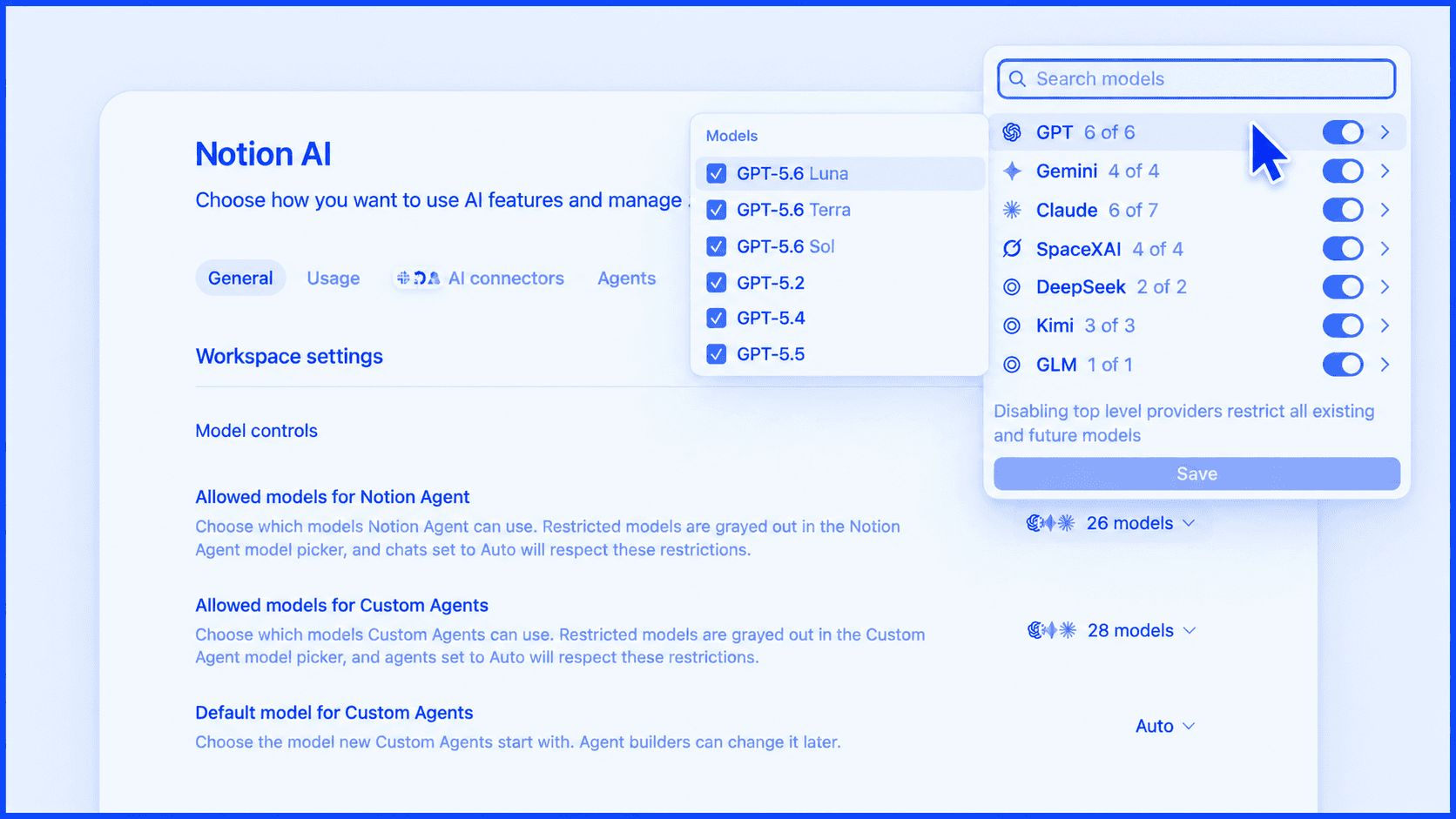
Notion’s September 9 release places model controls under Settings → Notion AI → General → Model controls. It distinguishes Notion Agent from Custom Agents and allows a default model for Custom Agents. See the model-controls announcement.
The premium-credit Help page directs admins to Settings → Notion AI → Usage for premium models and member limits. It says to set a workspace default and higher limits for selected people or groups. See the spending instructions.
The two sources use different tabs. Start at Notion AI settings and check both General and Usage; do not assume you have configured spending because you changed the allowed-model list.
The admin checklist
- Name the owner. Choose the person who will approve access changes and review usage. Put that name beside your internal AI guidance.
- Review the model controls. Record which models are enabled for Notion Agent and which are enabled for Custom Agents. Treat them as separate decisions.
- Set the default member limit. Choose a limit your team can explain. Document who can request an exception and what information they should provide.
- Run a defined pilot. Give the pilot group a real task, a quality standard, and a date to report back. Avoid open-ended testing with no review.
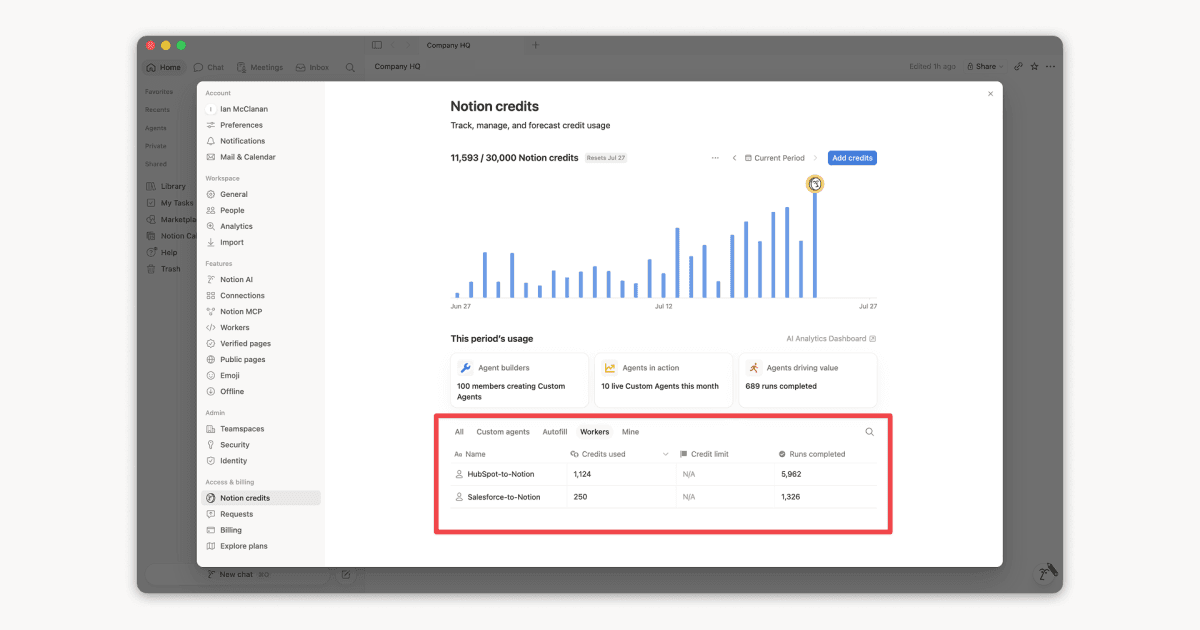
- Review the credit dashboard. Notion lists member spending at Settings → Access & billing → Notion credits → Members. Compare that usage with the useful work produced. Dashboard guidance.
For a coaching engagement, capture the decision in the client’s workspace while the admin is present. “Premium AI enabled” is an incomplete handoff. The next admin needs the purpose, the limits, and the person responsible.
Give the team a usable rule
A short internal note can prevent a lot of guesswork:
Use our usual model for routine drafting and summaries. Use an approved premium model for the specific tasks listed in our AI guidance. Include the task and the reason when requesting a higher spending limit. Review the output before using it in a shared document.
Adapt the wording to your actual policy. Keep it close to the place people ask for help, and make the exception process easy to find.
Common questions
Why is a premium model unavailable?
Check whether it is enabled, whether the member has reached their limit, and whether the workspace has credits available. Those are the three causes listed in Notion Help.
Does this change Custom Agent model access too?
Notion Agent and Custom Agents have separate model controls. Review both if your team uses both.
Should every member get the same allowance?
Start with a default you can manage. Give exceptions a clear purpose and review date. The right allowance depends on the work, so avoid copying another team’s budget without understanding its usage.
Open Settings → Notion AI today. Record the allowed models, member limits, and person responsible before expanding access.
Image: Notion. Blue treatment by Notion Coach. Original release artwork.